

Direct answer:
Direct answer: Descript is a video and audio editor that lets you edit by editing words. You record or upload a clip, Descript turns the speech into a transcript, and when you delete a sentence from that transcript, the matching video disappears too. For a UK small business that needs regular, honest video content — a trades firm explaining a job, a café showing a new menu, a salon answering common questions — that approach removes the steepest learning curve in video editing. You do not need to master a timeline. You need a decent phone recording, a clear message, and an hour to tidy it up.
What Descript actually is
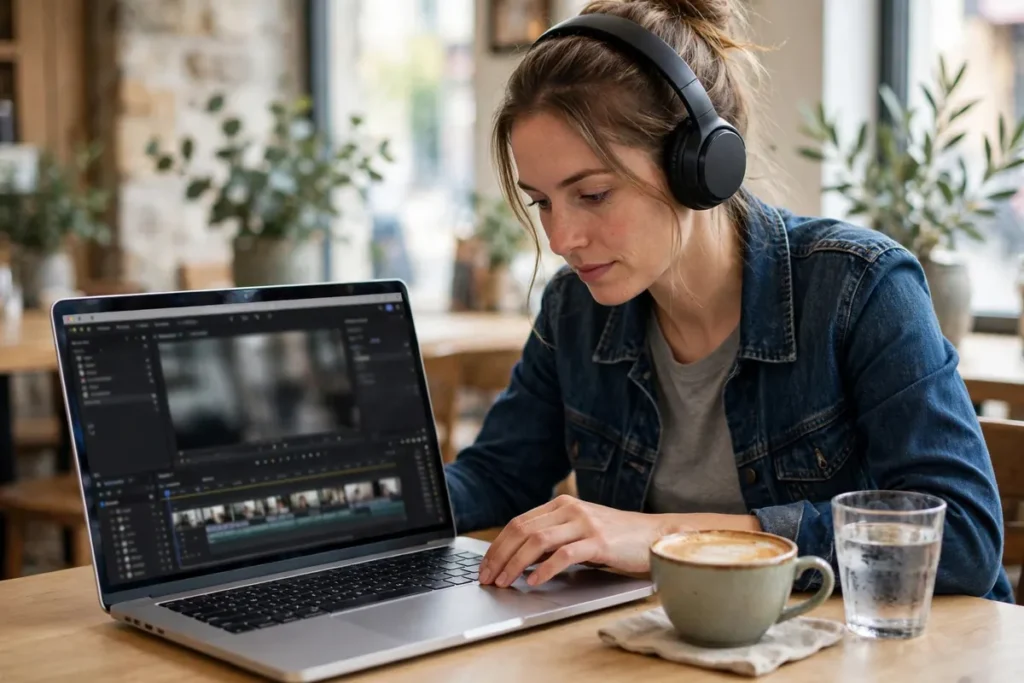
At its core, Descript is an editor built around a transcript. Traditional video editors show you a timeline of clips, audio waveforms and playheads. Descript shows you words on a page. You read through what was said, highlight the parts that ramble, repeat or wander off topic, press delete, and the video tightens itself.
That sounds like a small difference. In practice, it changes who in a business can make video. The owner, the office manager or the apprentice who is good with words can often do a usable edit, because the skill being used is editing a document. It does not turn a poor recording into a good one, and it does not replace judgement about what to say. It does remove a lot of fiddly technical work that puts small teams off video altogether.
Descript also handles audio-only work in the same way, which is useful if you record voice notes, podcast-style explainers or phone audio for a website. The same transcript-first idea applies: cut the words, and the audio follows.
You can use it in a browser or as a desktop app, and you can work on a project on your own or share it with a colleague for comments. For most small businesses, the solo workflow is enough to start with. Collaboration becomes useful later, when one person records and another person checks the edit before it goes live.
How text-based editing works in practice
Imagine you filmed a two-minute walkthrough on your phone. You talk about a bathroom refit, you pause to move a box out of shot, you repeat yourself once while you think of the right word, and you finish with a call to action. In a traditional editor, you would scrub through the timeline, set in and out points, and hope you cut at the right frame.
In Descript, you open the transcript and read it like a draft:
> “So, this is the bathroom we have just finished in, um, in Chorlton. We have, we have replaced the bath with a walk-in shower, and, uh, we have also tiled…”
You delete the repeated words, the “um” and the false start. The video shortens. You move a sentence earlier in the piece by cutting and pasting the text. The video reorders itself. You correct a word in the transcript because Descript misheard a trade term, and the captions improve as well.
It is not magic, and it is not perfect. You still need to listen back. A transcript edit can create an abrupt cut if you remove a whole breath or a natural pause. A misheard word can slip through if you only read quickly. But for spoken content, reading the edit is faster and less error-prone than hunting through a timeline, especially when you are editing your own voice and you already know what you meant to say.
One practical habit helps a lot: record a few seconds of silence at the start and end of each take. It gives you clean handles to cut from, and it stops the finished clip from starting or ending mid-word.
Who Descript suits — and who should look elsewhere
Descript suits businesses where the message is spoken and straightforward. That covers a large part of everyday small-business video: explaining a service, answering a frequently asked question, showing a finished job, introducing the team, announcing a seasonal menu, or recording a short tutorial for customers.
It suits teams with limited time. If you can spare an hour a week for content, a transcript-first edit is realistic. If video editing currently takes you a whole afternoon and the result still feels rough, Descript is likely to feel like a genuine shortcut rather than just another tool to learn.
It is less suited to highly visual work. A wedding videographer, a product filmmaker or a business that relies on fast cuts, music-driven montages and complex graphics will hit its limits quickly. It is also not a substitute for a camera operator on a big shoot. If the footage itself is shaky, dark or inaudible, no editor will rescue it.
A good rule of thumb: if you would be happy explaining the same thing to a customer face to face, Descript can probably turn that explanation into a usable video. If the video needs to sell mainly through visuals, music and mood rather than words, you need a different approach.
| Type of video | Descript is a good fit? | Why |
|---|---|---|
| Job walkthrough or before-and-after talk-through | Yes | The words carry the explanation; cuts are simple |
| FAQ or how-to explainer | Yes | Easy to reorder, tighten and caption |
| Customer testimonial | Yes | Filler removal and captions make it watchable with sound off |
| Menu, product or seasonal announcement | Yes | Short, spoken, quick to turn around |
| Cinematic brand film or music-led montage | No | Needs timeline precision and visual effects |
| Complex multi-camera event edit | Mixed | Possible, but slower and less precise than a traditional editor |
The full step-by-step workflow
This is the workflow most small businesses will actually use, from phone recording to a finished clip. You do not need to use every feature on your first attempt. Get the first version out, learn what annoyed you, and add one improvement next time.
1. Record or import your footage
Start with the recording, not the software. Find a quiet spot, face a window or a bright light source if you are filming yourself, and hold the phone steady — propped on a shelf or a cheap tripod beats a shaky handheld shot. Speak a little more slowly than feels natural. It sounds odd in the room, but it sounds clear on video.
Record in one or two takes rather than twenty tiny clips. A single continuous take is easier to transcribe and edit in Descript, and it sounds more natural than a patchwork of fragments. If you stumble, pause, take a breath and restart the sentence. That pause makes the mistake easy to find and delete later.
You can also import existing footage: a screen recording, a Zoom call, a voice memo or a video someone else filmed. Descript will transcribe it in the same way. Imported audio from a noisy workshop or a busy café will be harder to transcribe accurately, so check the transcript carefully in those cases.
A concrete example helps here. Take a plumbing firm in Leeds. The owner films a 90-second walkthrough on his phone after finishing a boiler replacement: the old setup, the new boiler, the controls, and one tip for the homeowner. He does not script it word for word. He has three bullet points on a scrap of paper — old boiler out, new boiler in, how to use the controls — and talks around them. That is plenty. A scripted performance would sound stiff; a loose talk-through sounds like a real tradesperson.
2. Get the transcript right before you edit
Once the footage is in Descript, the first job is the transcript, not the edit. Read through it and correct names, places, product names and trade terms. Descript is generally good with clear, standard English, but it will mishear brand names, local place names and jargon. “Combi boiler” might come out right; a specific part name or a supplier name might not.
This step matters twice over. First, the transcript is what you edit from, so errors here lead to wrong cuts. Second, the transcript often becomes your captions, so an uncorrected error ends up on screen in front of customers.
If you have a speaker with a strong regional accent, or the recording has background noise, expect more corrections. That is normal, not a fault in your recording. Budget a few extra minutes for this pass on noisy recordings, and do not skip it. A video with “Chorlton” captioned as something else entirely looks careless, even if the spoken audio is fine.
You can also add speaker labels if more than one person is talking, which helps when you later search a longer recording for a particular answer. For a short social clip, this is optional. For a longer tutorial or a recorded Q&A, it saves time.
3. Clean up filler words, gaps and rambling
Now comes the part small businesses like most: the clean-up. Descript can find filler words such as “um”, “uh”, “you know” and repeated words, and remove them in bulk. For a typical talking-head clip, this alone can cut 10 to 20 seconds of waffle and make the speaker sound noticeably more confident — without changing what they actually said.
Use this feature with a light touch on the first pass. Remove the obvious fillers, then listen through once. Sometimes a pause gives the viewer time to absorb a point, or a repeated word is emphasis rather than a mistake. Removing every single hesitation can make someone sound robotic. The goal is a natural, confident delivery, not a machine-gun delivery.
Next, tighten the structure. Delete the false starts, the long anecdote that does not serve the point, and the second explanation of something you already explained well. If a sentence works better at the start, cut and paste it there in the transcript. Read the edited transcript aloud in your head as you go: does it still flow as a piece of speech, or does it now jump?
Descript’s Studio Sound feature can also improve the audio, reducing background hum and making a phone recording sound closer to a proper microphone recording. It helps a lot with echoey rooms and low-volume speech. It will not fix clipping — that harsh distortion when someone shouts into a phone mic — and it will not remove a loud drill or a coffee machine from the background. Record as cleanly as you can, and treat Studio Sound as polish, not rescue.
For the Leeds plumber example, the clean-up pass might turn a 90-second ramble into a tight 60-second clip: the box-moving pause goes, the repeated sentence goes, the fillers go, and the tip about the controls stays because it is the most useful part for the homeowner watching.
4. Add captions that people can actually read
Captions are not an optional extra. Many people scroll social media with the sound off, whether they are on a bus, in a waiting room or at work. Others rely on captions to follow along. A video without captions loses a large part of its audience before the first point lands.
Descript generates captions from your transcript, and you can choose the style: font, size, colour and whether words highlight as they are spoken. Keep it readable. White or yellow text with a dark background, large enough to read on a phone held at arm’s length, beats a stylish thin font that disappears over a bright background.
Check the captions against the audio one more time, especially for numbers, prices, opening times and addresses. A wrong opening time in a caption is worse than no caption at all, because viewers will trust what they read. For a café video, that means double-checking the menu items, the prices mentioned and the date of a special event.
If you are posting to multiple platforms, you may need different caption styles or safe areas for each one. Export a version for each platform rather than trying to make one file serve everywhere. It takes a few extra minutes, but it stops captions being covered by platform buttons and usernames.
5. Make clips, not just one long video
One recording should rarely become one video. The best small-business habit with Descript is to pull out the strongest moments as standalone clips.
Take the café example. A café owner in Bristol records a three-minute video about the new autumn menu: the soup, the cake, the coffee, and the fact that the café now does takeaway. That is a decent website video. It is also four potential social posts: one about the soup, one about the cake, one about the coffee, and one about takeaway. Each clip should make one point, open with that point, and end with a clear next step, such as visiting, booking or ordering.
In Descript, you select the transcript section for that point, set the format — vertical for Reels and TikTok, square or landscape for other feeds — and export it as its own file. Reframing matters: a landscape walkthrough cropped badly for vertical video can cut off the speaker’s face or the product. Check the framing for each format before you export, and adjust the shot if the important part is out of frame.
This is also where a content plan pays off. If you know you want a clip a week, one monthly recording session can give you four clips, rather than four separate filming days. Planning content in advance makes that kind of batching far easier, which is why many small firms pair video with a simple calendar — see this guide to an AI content calendar for small business for a practical way to plan a month of posts without overcomplicating it.
6. Export in the right format for where it will live
Exporting is the last step, and it is where small mistakes creep in. Before you export, check three things: the start and end are clean, the captions are correct, and the format matches the destination. A vertical clip for a website hero section will look wrong, and a landscape clip squeezed into a vertical feed will look small and hard to watch.
Export at a quality suitable for the platform, and keep a master copy of the finished video somewhere safe — not just the version uploaded to social media, where compression and platform changes can degrade it over time. If you later want to reuse the clip on your website, in an email or in a presentation, you will be glad you kept the clean export.
Name your files sensibly: “leeds-boiler-walkthrough-captioned-vertical.mp4” is useful six months later; “final-final-v3.mp4” is not. This sounds trivial until you have forty clips and cannot find the one a customer asked about.
What Descript is good at — and what it is not
Descript is good at speed, clarity and consistency. It lets a non-specialist produce a steady stream of watchable videos. It is good at turning spoken expertise into content: the knowledge is already in the owner’s head, and Descript lowers the barrier to getting it on camera. It is good at captions, clean-up and repurposing one recording into several clips, which are exactly the tasks that eat up small-business time.
It is not good at fixing bad footage. If the audio is drowned out by background noise, if the picture is too dark to see the work, or if the speaker mumbles through the key point, Descript will give you a tidier version of a poor video, not a good video. It is not a replacement for planning what to say, and it is not a replacement for a proper microphone if you record regularly in noisy places. A modest lapel microphone, even a cheap one, will improve your results more than any software feature.
It is also not ideal for precise visual work. If you need to sync cuts exactly to music beats, build complex graphics or composite multiple video layers, a traditional editor will serve you better. Descript can do some of this, but it is not where it excels, and fighting the tool for a showpiece edit wastes the time it saves on everyday content.
The honest summary is this: Descript is a workhorse for everyday spoken video, not a specialist tool for cinematic production. Most small businesses need far more of the former than the latter.
Pricing without the guesswork
This section deliberately avoids quoting specific prices, because Descript’s pricing has changed over time and different sources disagree. Quoting a figure from an old article could leave you budgeting for the wrong amount. What is stable, and worth knowing before you sign up, is the structure.
Descript is offered in tiers, charged per user per month, with a limited free tier for trying it out. The free tier is genuinely useful for learning the workflow and making a first video, but it has limits on transcription time, exports and advanced features, so it is not a long-term production plan for a business posting weekly.
Paid tiers generally unlock more transcription hours, higher-quality audio tools, more export options and collaboration features. The right tier depends on how much you record each month and whether you need features like Studio Sound at full quality, AI voices or team seats. A sole trader posting one clip a week will need far less than a firm recording several tutorials a month.
Before you budget, check Descript’s current pricing page directly and note what is included in the tier you are considering: transcription allowance, whether the price is monthly or annual, and what happens when you exceed an allowance. If you are comparing it with hiring an editor or buying traditional software, factor in your own time as well. A tool that saves you three hours a month is worth more than the subscription figure alone suggests, but only if you actually use it.
One practical tip: start on the lowest tier that covers your first month’s plan, make four videos, and then decide whether you need more. It is easy to upgrade later, and it stops you paying for features you have not yet learned to use.
UK GDPR, consent and handling recordings
Video content brings data protection duties that a text blog post does not. If you record staff or customers, you are handling personal data, and UK GDPR applies. This is not a reason to avoid video — it is a reason to handle it properly, in the same way you would handle customer details in any other part of the business.
The basics are straightforward. Tell people they are being recorded, explain what the recording will be used for, and get their agreement before you publish. A customer testimonial filmed in your shop is a clear example: ask first, explain where it will appear — your website, Instagram, or both — and give them a chance to say no. A staff member appearing in a team video should also know and agree, and should not feel pressured into it.
Transcripts count too. A transcript is not just text; it is a record of what an identifiable person said, and it can contain personal details they mentioned in passing — a name, a health detail, an address, a complaint about a neighbour. Treat transcripts with the same care as the video itself. Do not leave them in shared folders indefinitely, do not upload unedited recordings containing personal details to public platforms, and delete material you no longer need.
A few practical habits cover most cases: keep raw recordings in a private folder, not a shared drive open to everyone; edit out personal details that are not relevant to the video before publishing; have a simple written note of consent for testimonials, even if it is just an email confirming the customer is happy for the clip to be used; and set a retention habit — for example, reviewing old raw footage every six months and deleting what you will not reuse. If you work with children, vulnerable adults or in regulated settings such as care or healthcare, take specific advice before recording, as the rules and expectations are stricter.
This guide is not legal advice, and it does not replace advice tailored to your business. But following the principle — tell people, get agreement, use the recording only for the purpose you stated, and look after the files — will keep most small businesses on the right side of the rules.
Honest limits
Every tool has limits, and Descript’s are worth knowing before you rely on it for customer-facing content.
Transcription is the first limit. Descript copes well with clear speech in a quiet room, but accuracy drops with strong accents, fast speech, overlapping voices and background noise. Trade terms, brand names and place names are common casualties. That does not make it unusable — it makes proofreading the transcript a required step, not an optional one. If you publish captions without checking them, errors will reach your customers.
AI voice and cloning features are the second limit. Descript offers tools that can generate speech or clone a voice from a sample, and they can be useful for correcting a single misspoken word or voicing a short narration. They are not a substitute for recording the real thing when authenticity matters. A cloned voice correcting one word in your own recording is one thing; generating a whole testimonial in a voice that is not the customer’s is quite another, and would be misleading. Use voice tools sparingly, transparently, and only with proper consent where another person’s voice is involved.
The third limit is the footage itself. Descript will not fix a dark, shaky or inaudible recording. Studio Sound improves audio, but it cannot recover words that were never captured clearly, and it cannot remove a loud background noise without affecting the voice. If a recording is unusable, re-record it. Spending an hour trying to rescue bad footage usually costs more time than a ten-minute re-shoot.
Export and credit limits are the fourth limit. Depending on your tier, you may have limits on transcription hours, exports or AI features. Check your allowance before a big batch of videos, not after you hit a limit mid-project. If you plan a month of content in one recording session, make sure the tier you are on covers the total transcription time, not just one video at a time.
Finally, Descript will not write your message for you. It can tidy your words, but it cannot decide what your customers need to hear, what makes your business different, or whether a video is actually worth publishing. That judgement still belongs to you, and it is the part that matters most.
Common mistakes small businesses make
The most common mistake is filming without a point. A three-minute video that wanders through five topics helps no one. Decide the single point before you press record, say it early, support it briefly, and end with a next step.
The second mistake is skipping the listen-through. Filler removal and transcript edits can create abrupt jumps. A two-minute listen catches them. Publishing without listening is how a good recording ends up sounding choppy.
The third mistake is captions as an afterthought. Captions with errors, tiny text or poor contrast undermine an otherwise good video. Check them on a phone, not just on a large monitor, because that is how most viewers will see them.
The fourth mistake is trying to make one file serve every platform. Vertical, square and landscape versions need different framing and caption placement. Export the versions you actually need, and check each one.
The fifth mistake is recording in a noisy, echoey space and hoping software will fix it. Move to a quieter room, close a door, or use a basic microphone. Ten minutes spent on the recording environment saves an hour of editing frustration.
The sixth mistake is publishing without consent. A great testimonial you do not have permission to use is not an asset; it is a problem waiting to happen. Ask first, keep a note of the answer, and respect a no.
A realistic weekly routine
You do not need a content department to use Descript well. A realistic routine for a small firm looks like this: once a month, spend an hour recording three or four short talk-throughs — a job update, a common question, a seasonal offer, a tip. Spend a second hour that week editing the first one in Descript, adding captions and exporting it. In the following weeks, edit one recording per week. That is roughly an hour a week after the first session, and it gives you a steady clip each week without filming every week.
Batching matters because setting up to film — finding a quiet moment, tidying the background, getting the light right — takes time. Doing it four times in one session is far more efficient than doing it four times across a month. It also helps to keep a running list of video ideas: questions customers actually ask, jobs you are proud of, seasonal changes, and mistakes you see customers make. When recording day comes, you pick from the list instead of staring at a blank page.
Pairing video with a wider workflow helps too. If you already automate parts of your marketing or admin, video fits into that system rather than sitting apart from it — for example, a finished clip can be scheduled alongside other posts, and a tutorial can answer the same questions your team answers by phone every week. This guide to AI workflow automation for small business shows how small firms join those pieces up without building something complicated.
If you are also exploring AI assistants for drafting, notes or customer replies, it is worth seeing how a general tool compares with a specialist video tool. Descript does one job well; a broader assistant does many jobs adequately. This overview of Microsoft Copilot for small business is a useful contrast when you are deciding where to spend your software budget.
The bottom line for a UK small business
Descript earns its place if you want to make spoken video regularly without learning traditional editing. It is fast, forgiving and well suited to the kind of content small businesses actually need: explanations, walkthroughs, testimonials and short social clips. It is not a miracle worker for bad footage, it needs careful transcript checking, and its AI features should be used with restraint and consent.
Start small. Record one genuine talk-through this week — a job you finished, a question you answered, a product you are pleased with. Edit it in Descript, add captions, listen through once, and publish it. Then judge the tool by that video, not by a demo. If the process felt manageable and the result looked like your business at its best, you have found a workflow you can repeat. If it felt like a chore, the problem is more likely the recording or the message than the software, and fixing those two things will help whatever tool you use next.
FAQs
Is Descript good for a small business with no video editing experience?
Yes, that is exactly where it shines. You edit by deleting words from a transcript rather than cutting clips on a timeline, which most beginners find far easier to learn. You will still need to learn the basics of good recording, such as clear audio and decent light, but the editing itself is much less intimidating than traditional software.
Can Descript remove filler words like um and uh automatically?
Yes, Descript can detect filler words in a transcript and remove them in bulk, which can tighten a rambling recording quickly. It is worth reviewing the result before you publish, because it can occasionally remove a pause that was actually useful for emphasis. A quick listen-through after clean-up catches most of those cases.
Does Descript add captions to videos?
Yes, Descript can generate captions from your transcript and let you style them for social media or your website. Captions matter because many people watch with the sound off, and they also help viewers who are deaf or hard of hearing. Always check the caption text against the audio, especially for names, places and trade terms.
Do I need consent to record staff or customers for a Descript video?
In most cases, yes, you should tell people they are being recorded and get their agreement before you publish anything featuring them. A recording and its transcript can contain personal data under UK GDPR, so you need a lawful basis, a clear purpose and a sensible retention plan. If in doubt, ask before you record rather than trying to fix it afterwards.
Is Descript better than a traditional video editor?
It is better for talking-head videos, tutorials, testimonials and short social clips where the words carry the message. It is not the best choice for complex cinematic edits, heavy visual effects or precise frame-by-frame work. Many small businesses use Descript for everyday content and leave the occasional showpiece video to a specialist.
Can I use Descript to make short clips for social media?
Yes, you can select a strong section of a longer recording, reframe it for vertical or square formats, add captions and export it as a standalone clip. This works well for turning one job walkthrough, customer answer or menu update into several usable posts. Start with the single best point, not a summary of everything you said.